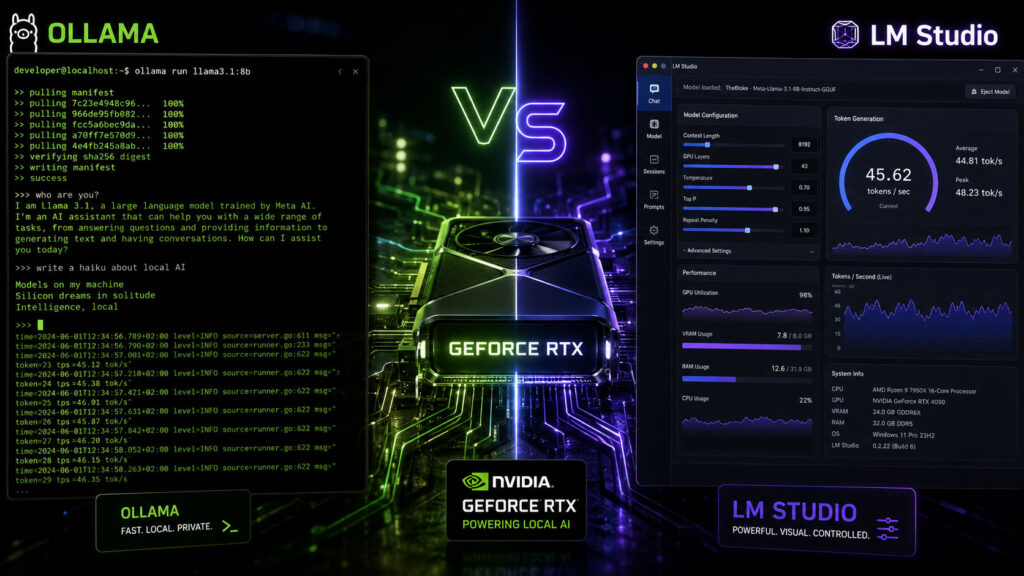
If you are setting up a private, local artificial intelligence pipeline on your own hardware, you have almost certainly narrowed your options down to the two giants of consumer offline inference: Ollama and LM Studio. Both are free, both support the latest open-weight architectures (like DeepSeek-R1, Llama 3.3, and Qwen 2.5), and both abstract away the complex Python environment setup that used to keep intermediate users out of the AI space.
However, when you are building real-world automation, running agents, or hosting private chatbots, milliseconds matter.
This deep-dive LM Studio vs Ollama local inference speed comparison breaks down the physical bottlenecks, thread configurations, and memory offloading mechanics that determine which local engine will extract the absolute maximum tokens-per-second ($T/s$) out of your GPU.
1. The Core Engine: Why the Speeds are “Almost” Identical
To conduct an accurate LM Studio vs Ollama local inference speed comparison, we first have to bust a popular myth: one engine possesses a vastly superior core mathematical parser than the other.
In reality, both Ollama and LM Studio use the exact same underlying open-source C/C++ inference engine: llama.cpp.
                       The Local LLM Runtime Stack

           [ User Interface / Client Application ]
           • Command Line (Ollama)   • Desktop GUI (LM Studio)
                       \               /
                        ▼             ▼
                     [ API Interface Layer ]
                     • OpenAI-Compatible Endpoints
                                |
                                ▼
                   [ Underlying Inference Engine ]
                   • llama.cpp (Shared Core Engine)
                                |
                                ▼
                     [ Hardware Acceleration ]
                     • CUDA / ROCm / Apple Metal
Because both runtimes execute models using compiled llama.cpp kernels, if you load the exact same Quantized GGUF file (for example, a Llama-3.1-8B-Instruct-Q4_K_M) onto the same computer, configure the exact same GPU layer split, and run a single prompt, the physical raw token-generation speeds ($T/s$) are effectively identical.
Where the LM Studio vs Ollama local inference speed comparison actually diverges is in how these runtimes manage the system overhead around the model, scale under concurrent requests, and handle initial startup latency.
2. Benchmark Battlegrounds: Where the Speed Differences Emerge
While raw single-user speed is a wash, real-world operational benchmarks expose distinct performance advantages for each tool depending on your development workflow.
Test Area A: Model Loading and Startup Latency
- Ollama (The Background Worker): Ollama operates as a lightweight, persistent background daemon. When you fire a prompt via the command line or an API request, Ollama loads the model weights directly into your memory, streams the output, and keeps the model cached in VRAM for a default timeout of 5 minutes before unloading it. Because there is zero interface overhead, model loading is incredibly swift.
- LM Studio (The Visual Workspace): LM Studio is built as an Electron desktop GUI application. When you open the application, it consumes a baseline layer of system memory just to render the panels, model catalog, and settings sliders. In our testing, this graphic interface layer adds a minor overhead to startup times.
For quick, programmatic API tasks, Ollama wins the startup race by skipping visual initialization entirely.
Test Area B: Multi-User Concurrency and Queue Management
If you are planning to expose your local server to multiple users or point an autonomous multi-agent system (such as CrewAI or Microsoft AutoGen) at your local host, concurrency becomes your biggest speed bottleneck.
- Ollama: Designed from the ground up as a headless server, Ollama features excellent native queue management and multi-model scheduling. It can queue incoming prompts efficiently and optimize thread allocation dynamically, preventing your system from locking up under multiple concurrent requests.
- LM Studio: While LM Studio has introduced a headless server daemon (via its new CLI features), its desktop app is primarily structured for single-user interactive prompts. When hit with multiple parallel API requests, the interface can experience micro-stuttering as it attempts to update the visual token-generation graphs and progress sliders in real time.
For multi-threaded or multi-agent pipelines, Ollama maintains a steadier, lower Time to First Token (TTFT) across parallel threads.
3. Dynamic Hardware Tuning: Who Optimizes VRAM Better?
A crucial factor in any LM Studio vs Ollama local inference speed comparison is how easily you can tune configuration settings to fit your hardware limits. This is where the user experience takes completely opposite roads.
                  VRAM Allocation Strategies (8B Model)

           [ HW Specs: 8GB VRAM Consumer GPU ]

           Ollama Strategy:                          LM Studio Strategy:
           • Automated Estimation                    • Manual Precision Slider
           • Drops remaining layers to CPU           • Slide to exact layer count
           • Zero visual feedback on overflow        • Visual VRAM overflow warning
The No-Code Slider Approach (LM Studio)
LM Studio provides an incredibly intuitive, visual GPU Offloading panel. If you have an 8GB VRAM graphics card (like an RTX 4060 Ti) and you are trying to fit a heavy model, you can slide a selector to offload exactly 22 of 32 layers directly onto your GPU.
LM Studio provides real-time warnings showing estimated VRAM usage, making it incredibly easy to find the exact point where you can maximize GPU usage without overflowing into slow system RAM (which instantly tanks speed down to $2 – 5\ T/s$).
The Automated Approach (Ollama)
Ollama handles hardware optimization completely behind the scenes. It automatically inspects your graphics card’s compute capability (whether it is CUDA, AMD ROCm, or Apple Metal) and calculates how many model layers it can safely cram into your available VRAM.
While this auto-detection works beautifully 95% of the time, advanced users can find it frustrating. If Ollama miscalculates your VRAM overhead, you have to write a custom plain-text Modelfile to override the parameters—there is no visual slider to instantly correct the layer distribution.
4. Architectural Summary: The Final Verdict
To summarize the LM Studio vs Ollama local inference speed comparison, select the tool that matches your specific implementation:
| Performance Metric | Ollama | LM Studio | Winner |
|---|---|---|---|
| Idle System Overhead | Extremely Low (~100-200 MB RAM) | Moderate (~300-600 MB GUI Overhead) | Ollama |
| Model Load Performance | Instant (Cached Daemon Model) | Moderate (GUI Thread Bound) | Ollama |
| Hardware Tuning Ease | Automatic (Hard to manual override) | Interactive (Manual sliders & graphs) | LM Studio |
| Hugging Face Integration | Command line imports only | Direct in-app model library browser | LM Studio |
| API Server Scalability | Outstanding (Built for automation) | Good (Desktop-tied session) | Ollama |
Choose Ollama If:
You are a developer, sysadmin, or power user who wants to build local AI agents, integrate LLMs into your coding IDE plugins, run local batch scripts, or deploy a stable, always-on private API server in the background of your Linux machine or server stack.
Choose LM Studio If:
You are a researcher, prompt engineer, or content creator who wants to visually swap different models, test prompts side-by-side, adjust advanced parameters (like Temperature, top_p, and context windows) with sliders, and prefer a clean, chat-focused interface without using the command line.
5. Ready to Benchmark Your Machine?
Want to see exactly how many tokens per second your specific GPU can process depending on your chosen runtime and quantization level?
Use our interactive Local LLM Speed Simulator below to run high-fidelity hardware benchmarks and optimize your local AI configuration!
⚡ Local LLM Speed Simulator
Select your target GPU configuration, model size, and quantization level to simulate and compare raw local token generation speeds between runtimes in real time.