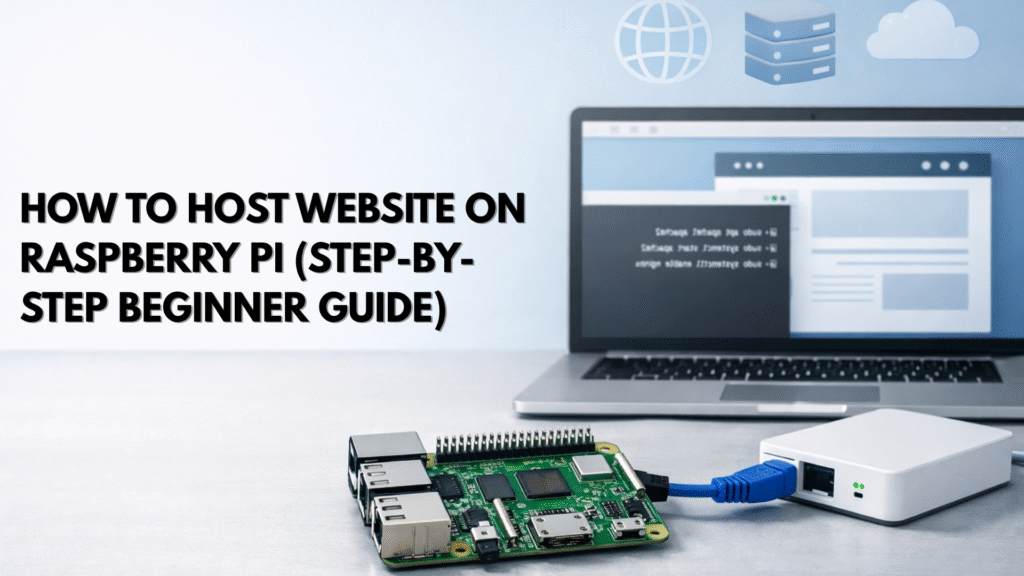
Why Host Website on Raspberry Pi?
If you’ve ever wondered whether you can host a website on Raspberry Pi. The short answer is YES, and it’s easier than you think.
- Maybe you’re tired of paying monthly hosting fees.
- Maybe you want full control over your server.
- Or maybe you’re just curious how websites really work behind the scenes.
Hosting a website on Raspberry Pi gives you a low-cost, hands-on way to learn real server skills. You get to run your own web server from a device smaller than your phone, using real tools like Linux, Nginx, and Apache. No fake demos. No locked platforms.
In this guide, you’ll learn how to host a website on Raspberry Pi from scratch, even if you’ve never touched server hosting before. We’ll cover hardware, software, security, performance, and common mistakes step by step.
By the end, you’ll know:
- What you need to get started
- How to set up your Raspberry Pi as a web server
- How to make your site accessible from anywhere
- When Raspberry Pi hosting makes sense (and when it doesn’t)
Let’s build something real.
What Does It Mean to Host a Website on Raspberry Pi?
Hosting a website on Raspberry Pi means your Pi acts as a physical web server.
Instead of renting space from a hosting company:
- Your Raspberry Pi stores the website files
- It runs server software (like Nginx or Apache)
- It delivers your site to visitors over the internet
Think of it like this:
A normal hosting company uses big servers in data centers.
You’re doing the same thing — just at home, on a tiny computer.
Why Use Raspberry Pi for Web Hosting?
Benefits of Hosting a Website on Raspberry Pi
- Very low cost (one-time hardware purchase)
- Full control over your server
- Perfect for learning Linux and server management
- Energy efficient (runs 24/7 on very little power)
- Great for personal sites, portfolios, demos, and test apps
When Raspberry Pi Hosting Is a Bad Idea
Raspberry Pi is not ideal if you need:
- Heavy traffic websites
- E-commerce with payments
- Mission-critical uptime
- Enterprise-level security
For those, use VPS or cloud hosting instead.
What You Need to Host Website on Raspberry Pi
Hardware Requirements
Minimum setup:
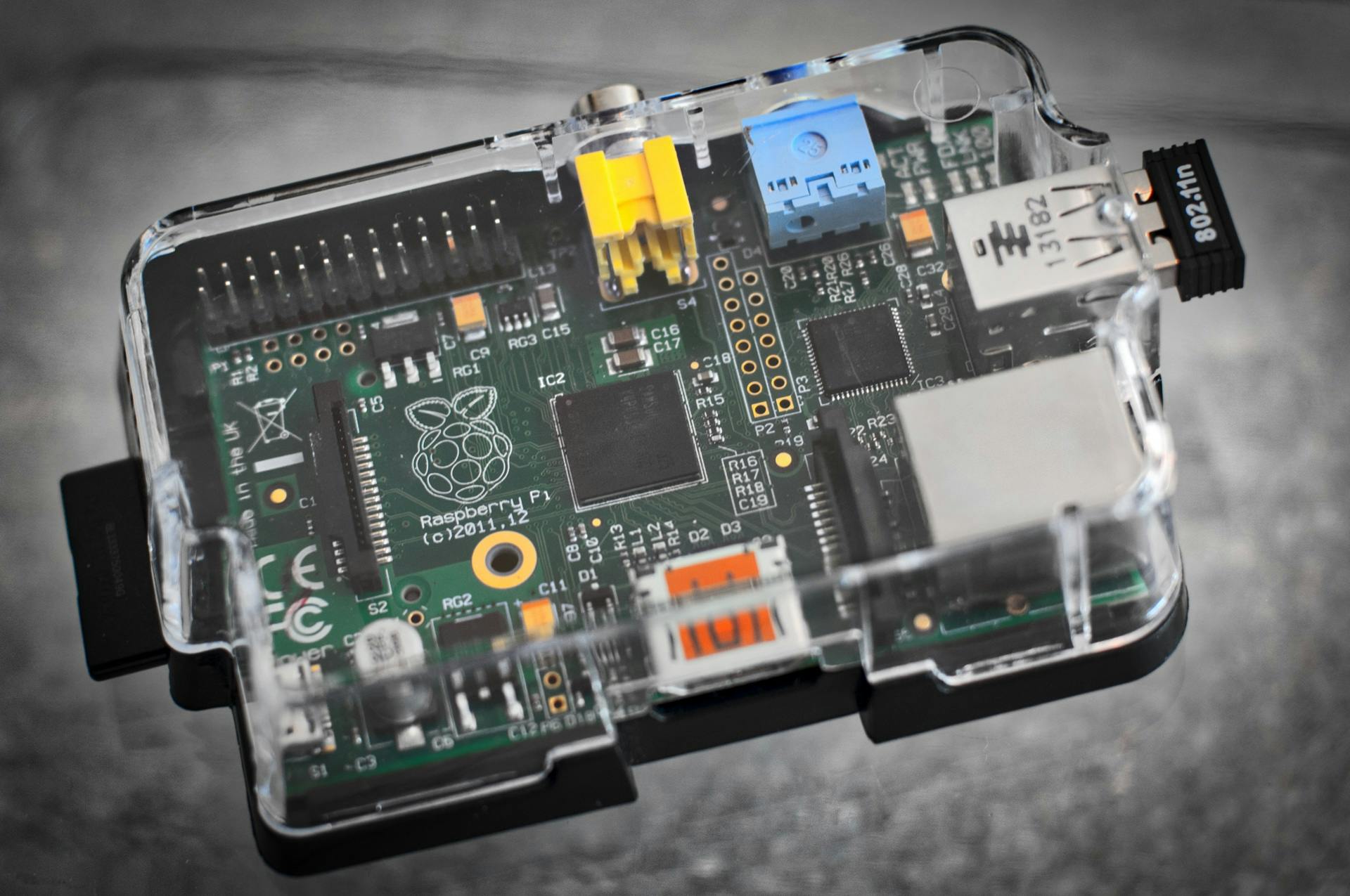
- Raspberry Pi 3 or 4 (Pi 4 recommended)
- MicroSD card (16GB+)
- Power adapter
- Ethernet cable or Wi-Fi
- Optional: case + cooling fan
Software Requirements
- Raspberry Pi OS (Lite preferred)
- Web server software (Nginx or Apache)
- SSH access
- A text editor (Nano or Vim)
Step 1: Install Raspberry Pi OS
Download Raspberry Pi OS Lite from the official site.
Flash it using:
- Raspberry Pi Imager
- Balena Etcher
Before ejecting the SD card:
- Enable SSH
- Set username & password
- Configure Wi-Fi (if not using Ethernet)
Insert the card and boot your Pi.
Step 2: Update Your Raspberry Pi
Log into your Pi using SSH:
ssh pi@your-pi-ip
Update everything:
sudo apt update && sudo apt upgrade -y
This keeps your system secure and stable.
Step 3: Install a Web Server (Nginx or Apache)
Option A: Install Nginx (Recommended)
sudo apt install nginx -y
Start and enable it:
sudo systemctl start nginx
sudo systemctl enable nginx
Visit your Pi’s IP in a browser.
You should see “Welcome to Nginx”
Option B: Install Apache
sudo apt install apache2 -y
Both work — Nginx is lighter and faster.
Step 4: Upload Your Website Files
Your website files live here:
/var/www/html
Replace the default page:
sudo rm /var/www/html/index.nginx-debian.html
sudo nano /var/www/html/index.html
Add simple HTML:
<h1>Hello from Raspberry Pi</h1>
<p>My website is live!</p>
Save and refresh your browser.
A Quick Real-Life Example
I once helped a student host their portfolio website on a Raspberry Pi at home.
They showed it in interviews and explained how they built their own server.
Guess what impressed employers more?
Not the design.
The fact they hosted it themselves.
That’s the real power here.
Step 5: Make Your Website Public (Port Forwarding)
Right now, your site works only inside your network.
To make it public:
- Log into your router
- Enable Port Forwarding
- Forward:
- Port 80 → Raspberry Pi IP
- Port 443 (later for HTTPS)
Every router is different, but the concept is the same.
Step 6: Use a Domain Name (Optional but Recommended)
You can use:
- Free dynamic DNS (No-IP, DuckDNS)
- Paid domain from any registrar
Point your domain to your public IP.
If your IP changes often, dynamic DNS is better.
Step 7: Secure Your Raspberry Pi Website (Important)
Enable Firewall
sudo apt install ufw -y
sudo ufw allow ssh
sudo ufw allow http
sudo ufw allow https
sudo ufw enable
Install SSL (HTTPS)
Use Let’s Encrypt:
sudo apt install certbot python3-certbot-nginx -y
sudo certbot --nginx
Now your site is secure
Performance Tips for Raspberry Pi Hosting
To keep things fast:
- Use Nginx instead of Apache
- Disable unused services
- Avoid heavy CMS like WordPress (unless optimized)
- Use static sites if possible
Raspberry Pi shines with:
- HTML/CSS/JS sites
- Lightweight APIs
- Personal dashboards
Common Problems (and Easy Fixes)
Website Not Loading?
- Check Pi IP address
- Confirm web server is running
- Verify port forwarding
Slow Performance?
- Too many background services
- SD card speed too slow
- Too many visitors
Power Outages?
- Use a small UPS
- Enable auto-boot
FAQs: Hosting Website on Raspberry Pi
Can I host WordPress on Raspberry Pi?
Yes, but performance will be limited. Use caching and minimal plugins.
Is Raspberry Pi hosting free?
Yes, except electricity and internet.
Can Raspberry Pi handle traffic?
Low to moderate traffic only.
Is it safe?
Yes — if you secure it properly.
Resources
- Learn more about home server setups here: Running home assistant on Raspberry Pi 3b
- Official Raspberry Pi documentation: Raspberry Pi Web Server Guide